
Setup: Local & Remote
Run Luna's server once, then use it on that computer or from your phone and other computers over Tailscale.
How Luna is set up
Luna is a server, which does the thinking and keeps your chats, memory and files, plus apps that talk to it: the desktop app, any browser, and the phone app. You set up the server once on the computer that will run it. Then you use it from that computer (Local) or from your other devices (Remote, over Tailscale).
1. Run the server
| Option | Good for | You need |
|---|---|---|
| A. Docker | Any OS, nothing else to install, easy upgrades | Docker Desktop, or Docker Engine on Linux |
| B. Windows app | A Windows PC you use every day, with voice and desktop controls | Windows 10/11, plus Python 3.10+ for the built-in server |
| C. From source | Developing Luna, or Linux/macOS without Docker | Node.js 18+ and Python 3.10+ |
A. Docker
docker run -d --name luna --restart unless-stopped \
  -p 127.0.0.1:8899:8899 -v luna_data:/app/data \
  ghcr.io/sehastrajit-s/luna:latest
Open http://localhost:8899. Everything Luna stores, including settings you save in the browser, lives in the luna_data volume, so upgrading never loses anything. For Ollama in Compose, a GPU, or a cloud-only setup, see Docker.
B. Windows app
Install the app
Download Luna-Setup-<version>.exe from Downloads and run it.
Give it Python
The app starts its own server with the Python on your PC. Install Python 3.10+, then Luna's packages, once:
git clone https://github.com/Sehastrajit-S/Luna.git
pip install -r Luna\server\requirements.txt
No Python? Run the server with Docker instead. When a Luna server is already running on port 8899, the app uses it.
C. From source
git clone https://github.com/Sehastrajit-S/Luna.git && cd Luna
npm install
npm run setup     # picks a model, installs Python and Node packages, writes .env
npm run web       # Luna at http://localhost:8899
Desktop app from source: npm --prefix interfaces/desktop start.
2. Choose a model
Open Settings → AI model in Luna, or set it in .env.
- Ollama (local, free, private): install Ollama and pull a model, e.g.
ollama pull qwen2.5:7b. Docker Compose includes Ollama. - A cloud model: pick a provider and paste its API key: Anthropic, Google, Groq, Mistral, Cohere, NVIDIA NIM, or any OpenAI-compatible service such as OpenRouter.
Optional extras in Settings → Integrations: GitHub, Spotify, and a SerpApi key for live store prices.
3. Use it on this computer (Local)
- Browser: http://localhost:8899
- Desktop app: starts on This computer by default (Settings → Server).
Nothing needs a token on the same computer.
4. Use it from your other devices (Remote, over Tailscale)
Tailscale is a free private network between your devices. Luna stays off the public internet; only devices signed in to your tailnet can reach it.
On the computer running Luna
Install Tailscale and sign in. Then share Luna:
| Server type | Command |
|---|---|
| From source | npm run serve:tailscale (starts Luna and shares it) |
| Windows app or Docker | tailscale serve --bg --https=8899 http://127.0.0.1:8899 |
Luna is now at https://<this-computer>.<your-tailnet>.ts.net:8899.
On your other devices
Install Tailscale on each one and sign in with the same account.
- Desktop app on another computer: Settings → Server → Remote over Tailscale. Luna lists the servers it finds; pick yours and Save and restart.
- Any browser, including phones: open the
ts.netaddress. On a phone, "Add to Home Screen" makes it open like an app. - Android app: Settings → Server: enter the same address.
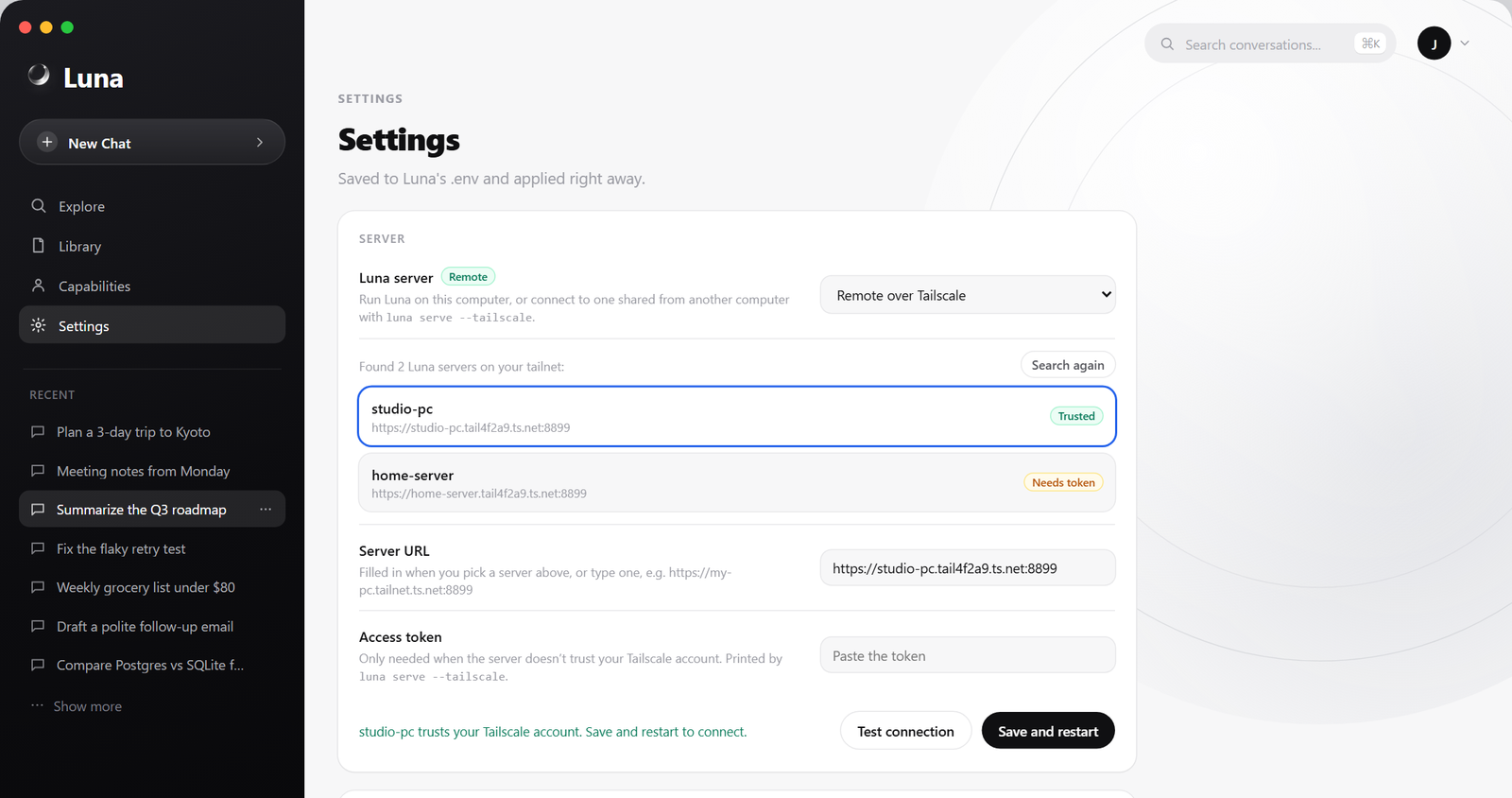
Who needs a token
- Your own devices (same Tailscale account): no token, when Luna runs from source or the desktop app.
- Docker: Luna can't confirm the Tailscale account through the container, so each remote device uses the access token once:
docker exec luna cat /app/data/local_api_token. Open…ts.net:8899/#token=<token>once in each browser, or paste it in the desktop app's Server settings. - Other people on your tailnet always need the token. It gives full access to your Luna, so treat it like a password.
How access is checked, Funnel, and security notes: Remote access.
5. Updating
| Setup | Update |
|---|---|
| Docker | docker pull ghcr.io/sehastrajit-s/luna:latest, then recreate the container. Data stays in the volume. |
| Windows app | Download the new installer, quit Luna (including the tray icon), and run it. Settings and chats are kept. |
| From source | git pull, npm install, pip install -r server/requirements.txt, then restart the server. |